
The Move-In Checklist — guided photo walkthrough
Use your phone as the camera for a guided room-by-room move-in / move-out condition record, then send it to the desktop to save or send for signature.
Transcript
Intro0:00
Every new tenancy should start with a move-in condition checklist. What shape the place was in on day one, with photos, so the move-out settlement is about facts. LandlordPro nudges you on the tenant card until it's done. Move-in checklist not done, complete. The same nudge shows on the rent roll card for a new move-in.
The checklist0:20
The checklist opens with inspection setup. The inspection date and mark all unmarked as excellent, good, fair, or end slash, of for anything you don't want to rate one by one. Then two ways to fill it in. Guided photo walkthrough, the recommended one. Walk the unit with your phone and the conditions fill in here as you go. Or manual entry, item by item on the desktop. At the bottom, save checklist, or save and send for signature.
Manual Entry0:47
Manual entry lists every area. Living room, kitchen, bathrooms, bedrooms, entry, doors and locks, HVAC, detectors, keys, and every item in each. Pick a condition, add a photo with the camera button, or remove an item that doesn't apply. The gear in the header customizes the list itself for next time.
Connect your phone1:07
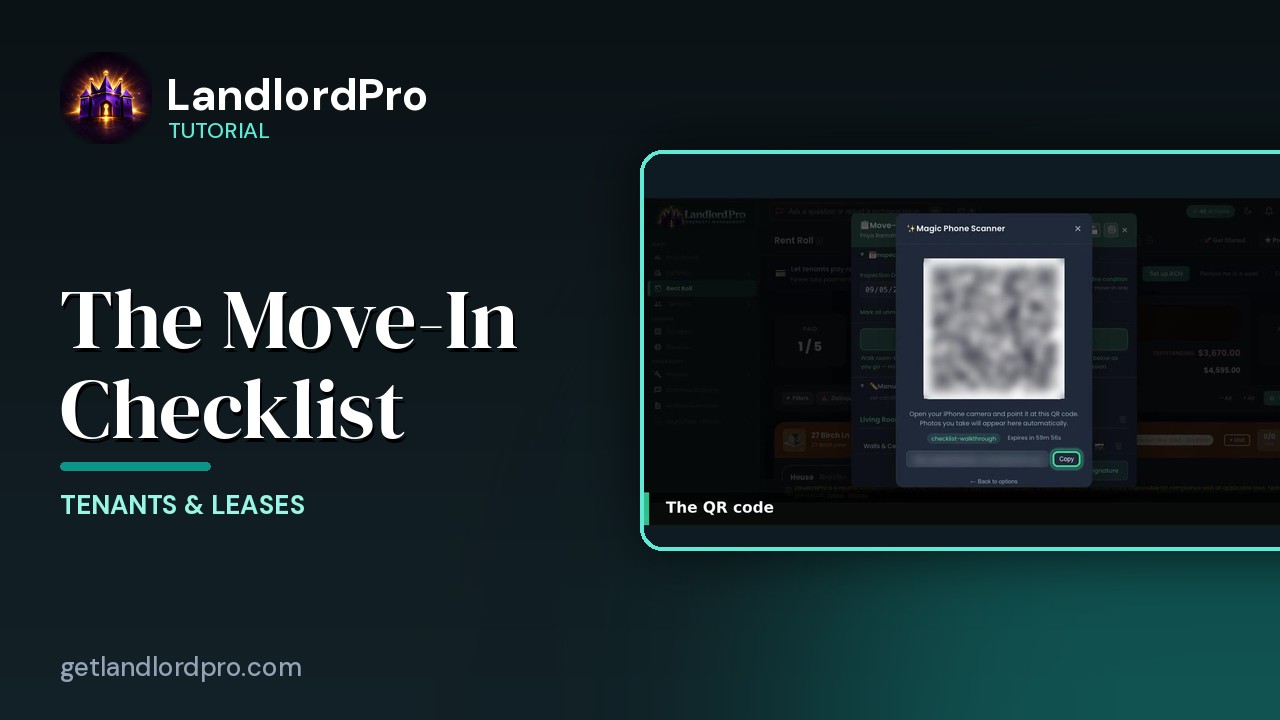
Guided photo walkthrough starts the magic phone scanner. Two ways to get the walkthrough onto your phone. Text me a link, one tap and you're in, or scan QR code with the phone's camera. If you're already on your phone, it just opens. Point the phone camera at the code. The session lasts an hour, and you can copy the link instead if that's easier. Leave this window open. The phone talks back to it.
On your phone: rooms1:33
On the phone, the walkthrough starts with the rooms. Drag to reorder, uncheck or remove one that doesn't exist here. Add a room that does, a garage, a porch, a basement. Then begin walkthrough.
One item at a time1:45
Now it's one item at a time, with the camera live. The room and item at the top, room one of nine, item one of four. Pick a condition, tap snap for the photo, then next. The condition is optional. The photo is the point. Captured. The green check means the photo's saved and uploading in the background. Tap it again to add more angles, or the trash to retake. Then next.
Conditions2:12
Six conditions. Excellent, good, fair, damaged, missing, and then slash A. Damaged and missing are what you'll be glad you photographed at MoveOut. The back arrow steps to the previous item if you missed something. Some items ask a little more. Smoke and CO detectors take a battery's replace date. The HVAC filter takes a filter replace date. Keys asks how many you handed over, with an option to include a replacement cost on the lease.
Room summary2:40
After the last item in a room, you get the room summary. Every item, it's condition, a camera icon where there's a photo. Mark all fixes, anything you skipped in one tap. Next room and keep walking. Before the end, remaining items catches anything still unrated. Rated here, mark all unmarked or skip. Then complete walkthrough.
Send to Desktop3:03
Walkthrough complete. Nine rooms, 32 conditions, and the photo's ready to send. Expand a room to check it. The trash clears a room. Fill empty sets anything blank in one go. Then send to desktop. Sent. Conditions and photos go to the desktop, and you can close the tab.
Back on the desktop3:23
Back on the desktop, the checklist filled itself in. Every condition set, a photo badge on every item that got one, and a walkthrough saved toast behind the modal. Nothing to type. Click a badge and there's the photo, with the room and item on it. Add more from the desktop if you want.
Save or send for signature3:42
Save checklist keeps it on the tenant's record. Save and send for signature, does that, and sends the tenant a link to review and sign it in their portal, and you can add a witness signature after. Once it's signed, the card shows the checklist as complete with the date. Day one condition, documented, photographed, and on the record. That's the move-in checklist. Get LandlordPro. Free to try. The address is on your screen.
More in Tenants & Leases
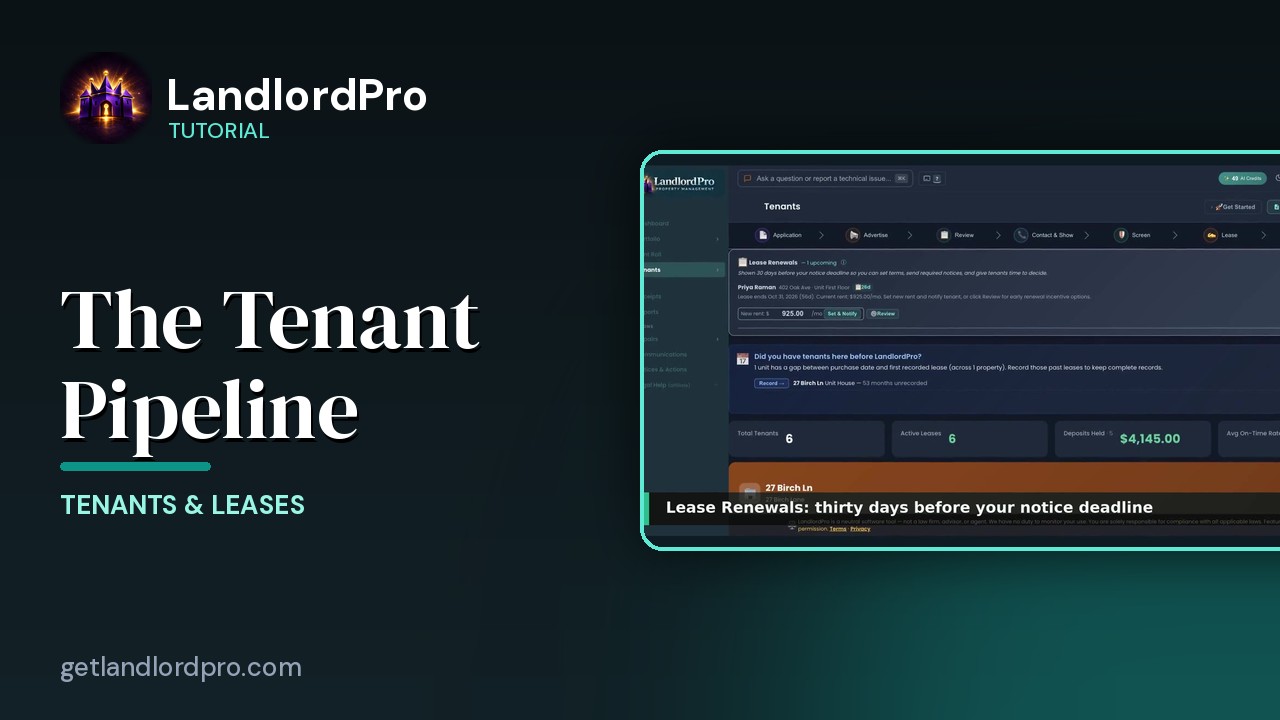
Tenants — the whole pipeline, one page
The whole tenant pipeline on one page: seven stages from application to lease, renewals, past tenants, the…
3:42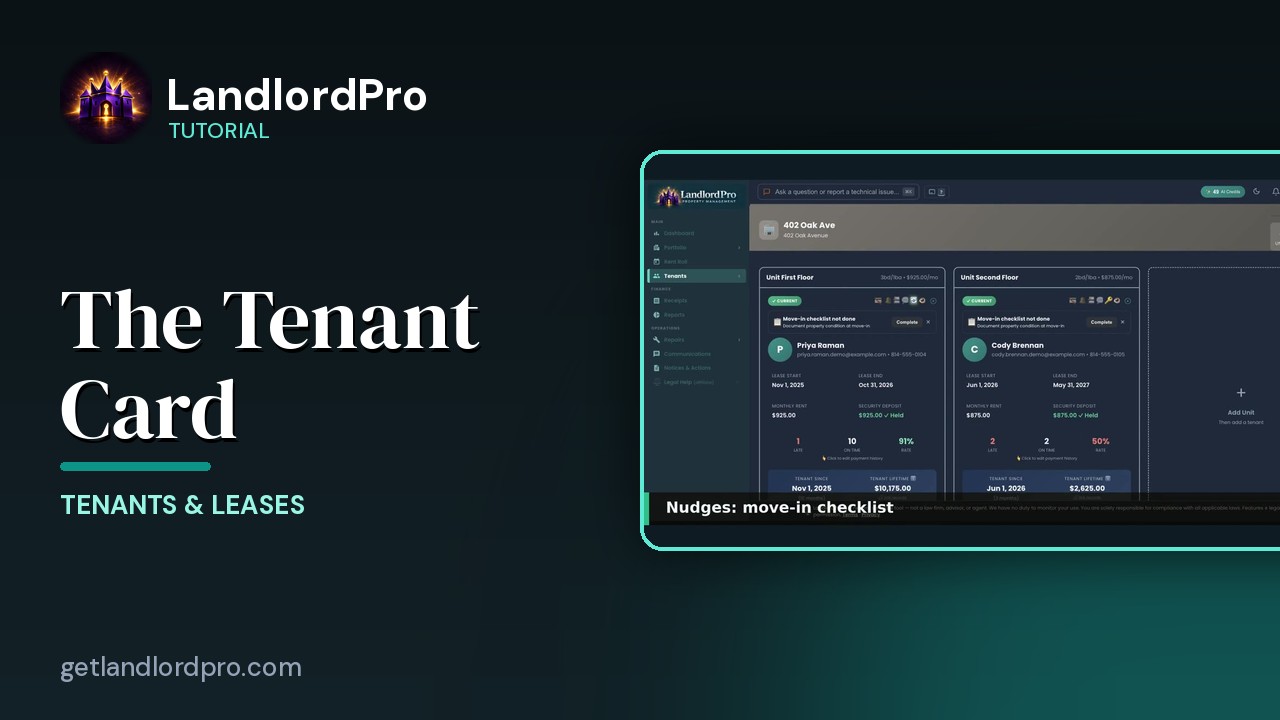
The Tenant Card
Reading a tenant card: status and icon bar, nudges, lease and money, late / on-time rate, payment history,…
1:40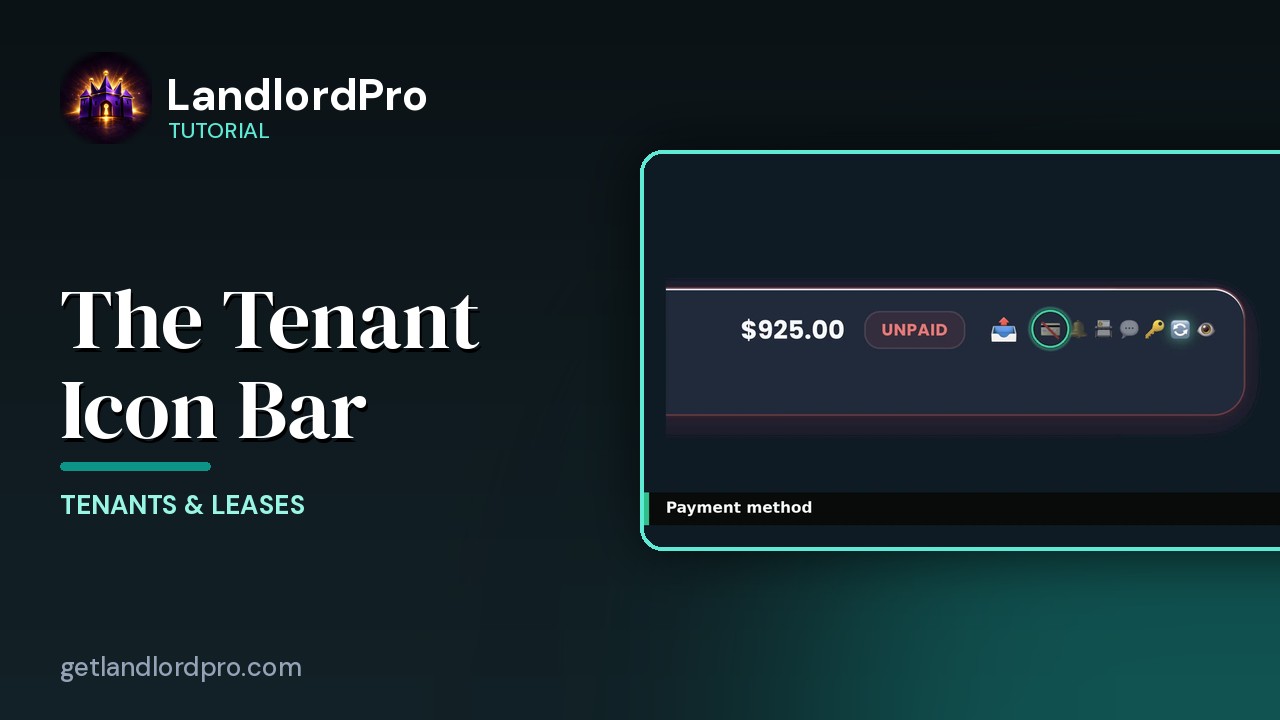
The Tenant Icon Bar
Manage tenant settings and communication at a glance: send a bill, payment card, reminder bell, contact card,…
3:24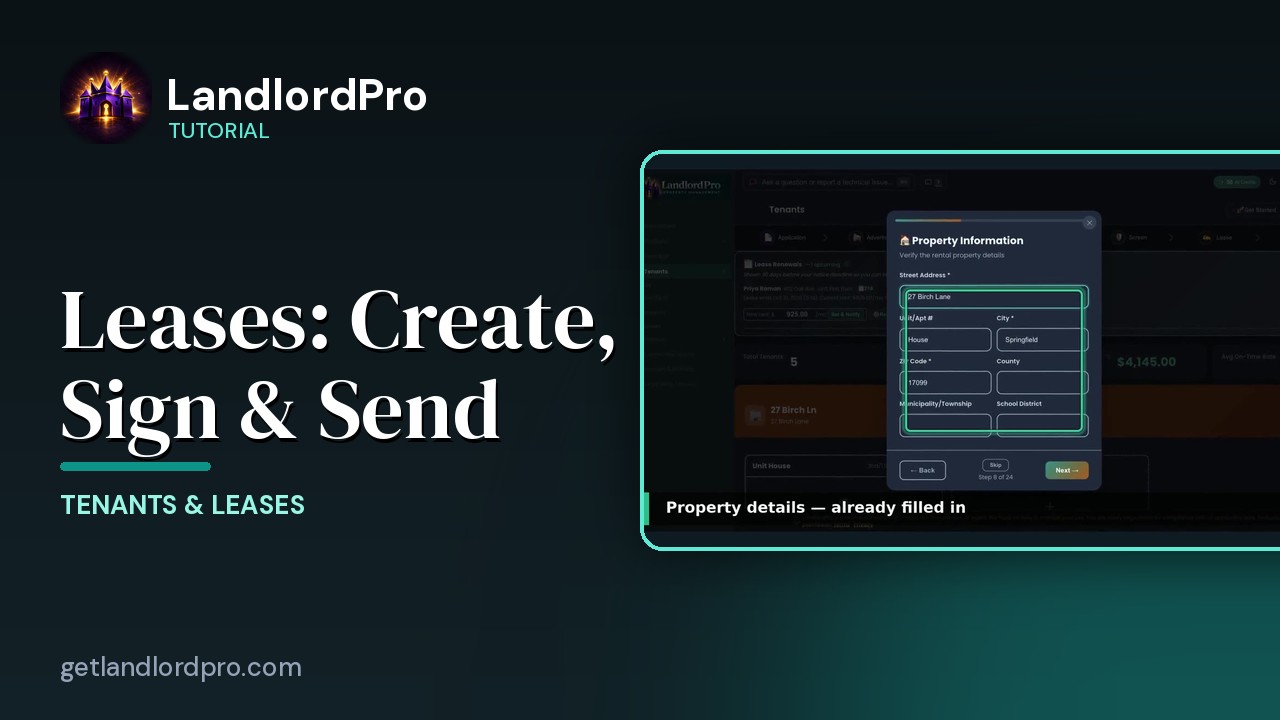
Leases — Create, Import, Sign & Send
Create a lease in minutes with the wizard, bring your own with an AI scan, or store a signed copy; then…
4:40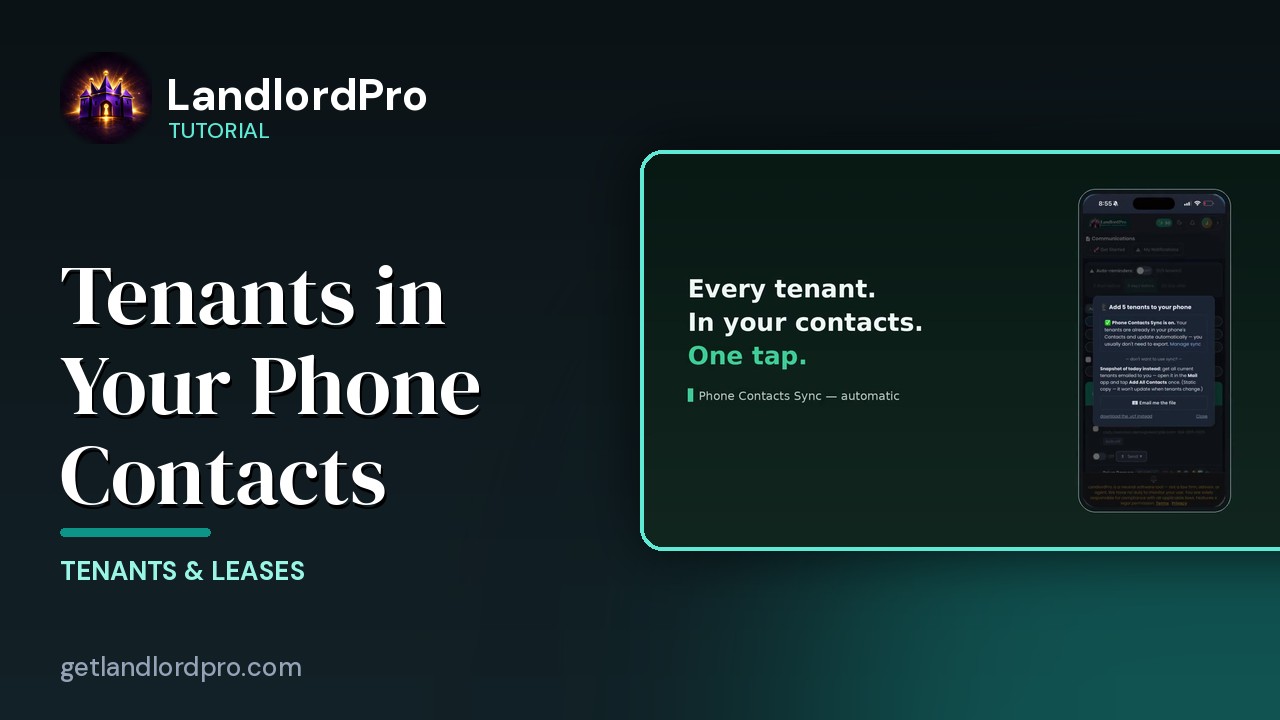
Tenants in Your Phone Contacts
Your tenants land in your phone's contacts automatically as they're added — with the rent amount right on the…
1:01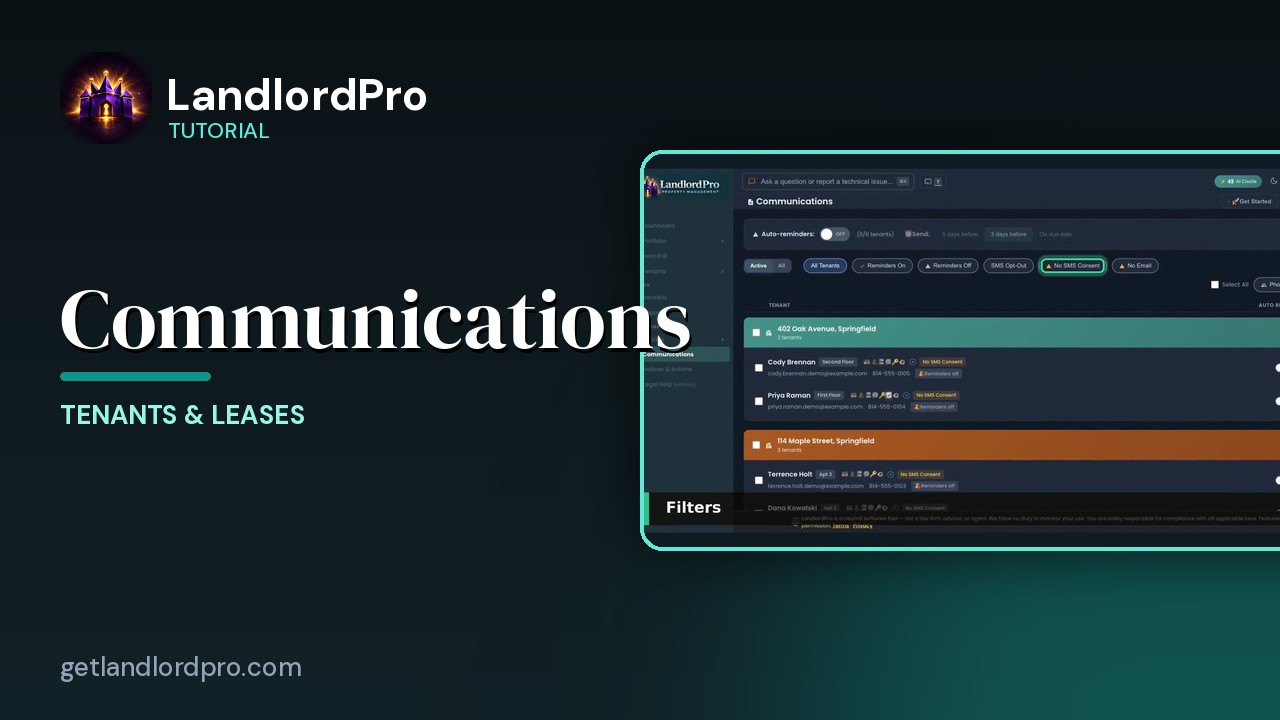
Communications — reminders, consent, one-tap sends
Auto-reminders, filters, the tenant row, the send menu that messages every tenant or every tenant in one…
2:07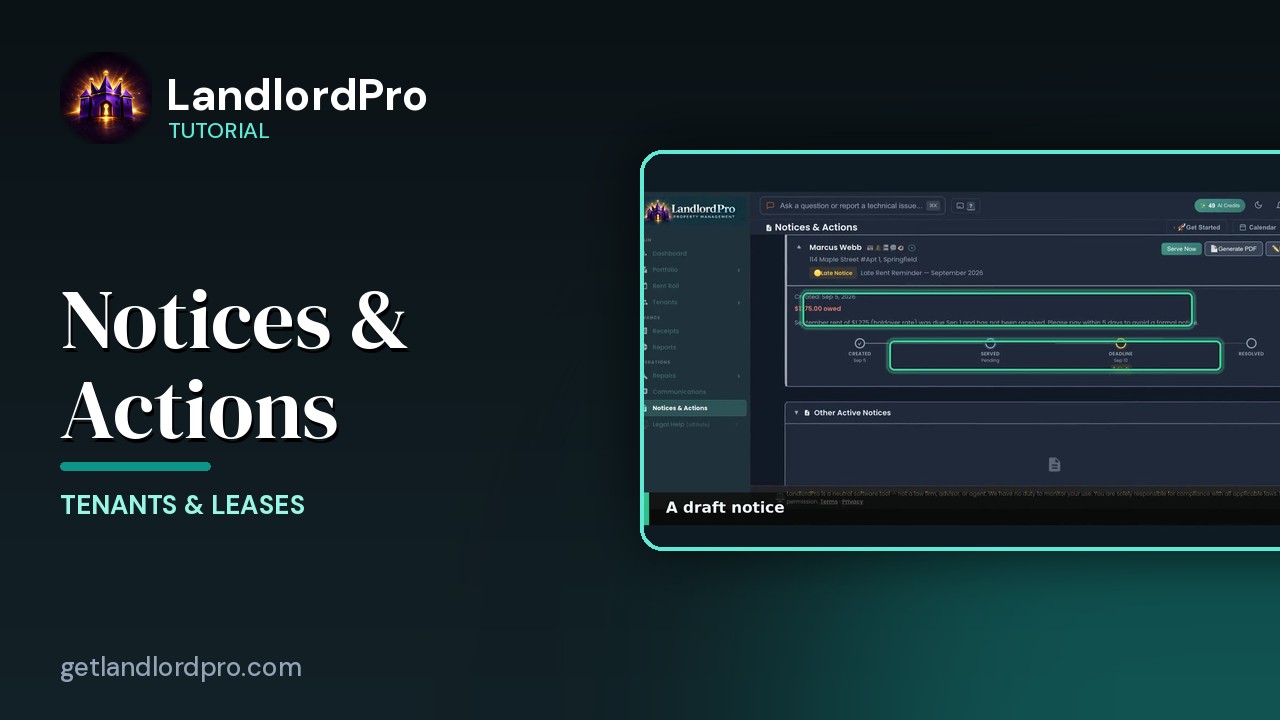
Notices & Actions — the paper trail
The paper trail: the calendar, counters and filters, drafting and sending a notice, the state eviction…
2:46All tutorials: the LandlordPro tutorial library · free tools: landlord calculators · help center.
See it on your own properties
LandlordPro is one tool for the whole job of being a landlord: ads built in minutes and pushed to Zillow, applications that pre-screen on your own criteria, leases created and e-signed in minutes, a tenant portal with ACH or Venmo payment, one-click messaging to every tenant in a building, phone contacts that sync as tenants are added, AI receipt scanning straight into Schedule E reports, guided photo move-in/move-out records, and a rent roll that does it all.
Try LandlordPro free →LandlordPro is not a law firm and does not give legal advice. Consult an attorney for your state and situation.